MOTIVA AIOpen workspace
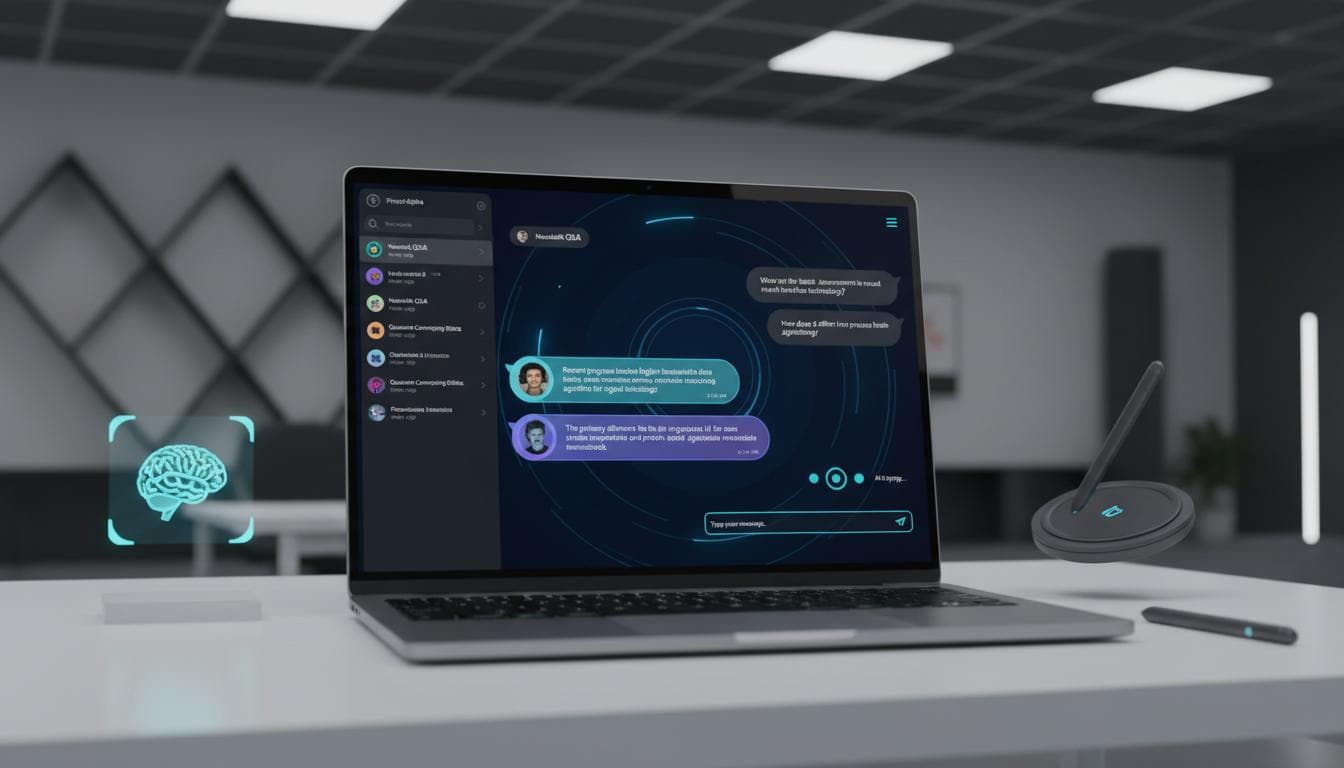
Motiva AI workspace for chat, research, and automation

One workspace · local and cloud intelligence

Motiva AI
Workspace

The complete guide to Motiva Hub: portfolio and contact, secure access, opportunity intelligence, reviewed applications and outreach, persistent AI workspaces, local and cloud models, media, agents, documents, automation, and every command needed to run them.

Start the guide
12+working product flows
7site-wide surfaces
3local media paths
30connector templates
71+catalog models when configured

Visual product tour

See the system before you configure it.

This first-party walkthrough uses the real Motiva workspace. Captions are burned into the video and available as an accessible text track; the chapter transcript beside it explains what to notice.

46-second visual walkthrough · silent · captions included Download MP4
  1. Meet the workspace

    See the navigation, conversation area, model controls, and working context in one view.

  2. Choose a mode

    Move between chat, media, canvas, computer, connectors, tasks, documents, and analysis.

  3. Bring context

    Attach files, reuse workspace material, preserve history, and keep inspectable sources beside the answer.

  4. Route intelligence

    Use Auto for routine choices or select a recommended local, Copilot, Gemini, media, or specialist model.

  5. Delegate safely

    Review browser plans, approve websites and authentication, pair a local companion, and stop active work.

  6. Inspect the result

    Read citations, audit steps, local and cloud token totals, provider cost, and saved artifacts.

  7. Use this guide

    Follow the command center and practical recipes below whenever a feature needs setup.

The operating surface

One calm interface for different kinds of work.

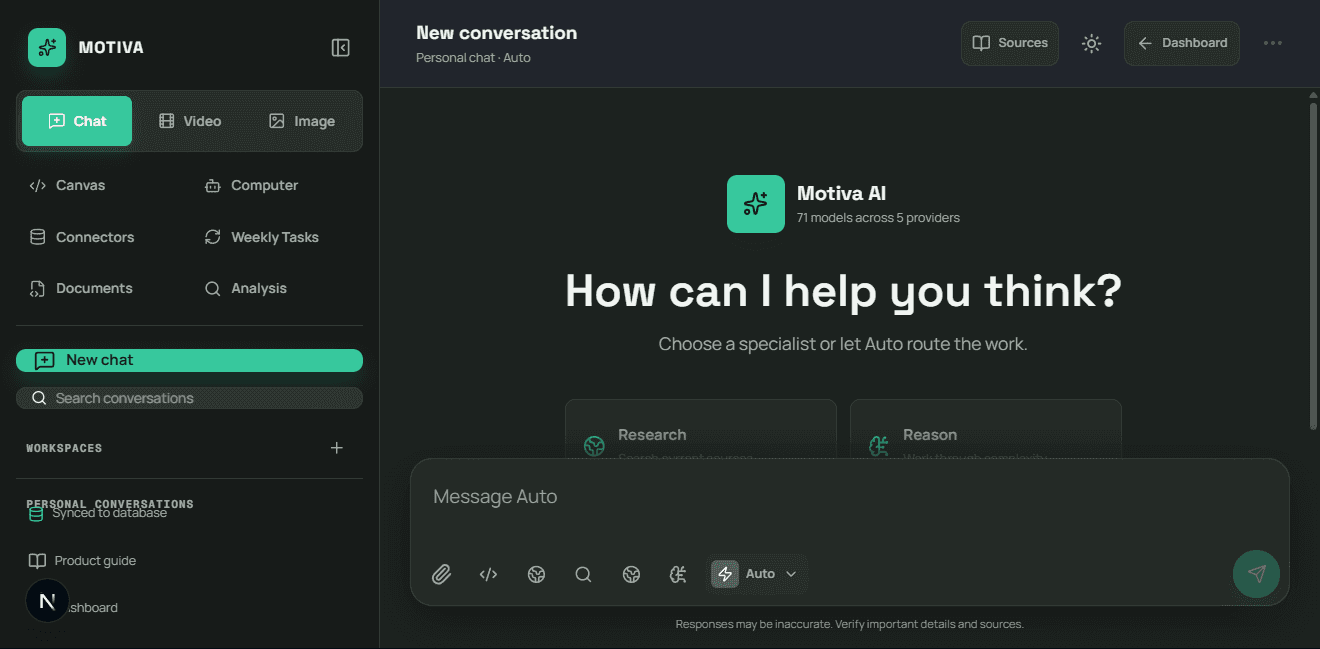
The workspace keeps conversations, reusable context, models, tools, media, sources, and deliverables visible without turning every task into a separate application.

The redesigned Motiva AI chat, model, and workspace interface
Actual local workspace · 71 catalog models across five configured providers

Command center

From a clean machine to a working feature.

Run these commands from the repository root in Windows PowerShell. One-time setup and daily startup are separated so you do not reinstall models or migrate the database every time.

01

First local setup

Install the app, create the private environment file, migrate PostgreSQL, seed the administrator, and start Next.js.

npm install
Copy-Item .env.example .env
npm run db:migrate
$env:ADMIN_INITIAL_PASSWORD="<temporary-password>"
npm run db:seed
Remove-Item Env:ADMIN_INITIAL_PASSWORD
npm run dev
Open http://localhost:3000, sign in, then use /dashboard or /chats.
02

Daily web app run

Use this after dependencies, the database, and environment values are already configured.

npm run dev
Next.js starts the local development site. Stop it with Ctrl+C.
03

Local images and video

One-time setup installs ComfyUI, the hardware-appropriate image/video stack, and upscaling models. Keep its service open while generating.

npm run local-models:setup
npm run local-models:start
# In a second terminal
npm run dev
Choose DreamShaper, Local Video Draft, or Local Storyboard under Local Models.
04

Personal Computer and local browser

Install Ollama, validate the compact local agent, then use Personal Computer or the legacy localhost browser path.

winget install --id Ollama.Ollama --exact
npm run personal-computer:setup
npm run dev
Ollama remains loopback-only at 127.0.0.1:11434.
05

Pair the deployed hybrid browser

Create a pairing code in Computer → Browser Control, pair this Windows device, and run the outbound-only companion.

npm run browser-companion:setup -- -ServerUrl "https://motiva-hub.com"
npm run browser-companion:start
The deployed site can dispatch signed work while Chrome, Ollama, and encrypted website sessions stay on this computer.
06

Check, build, and deploy

Run non-billable readiness checks before a production build. Vercel applies committed migrations through vercel-build.

npm run workspace:check
npm run local-models:check
npm run google-video:check
npm run promo:video
npm run lint
npm run build
npx vercel --prod
Never place a database password, provider key, or companion token in a command you plan to commit.
Environment checklist

Configure names, never publish values.

Copy .env.example to the ignored local environment file and add only the providers you intend to use. At least the core values and one chat provider are needed for the main workspace.

Core
DATABASE_URLJWT_SECRETNODE_ENV
Chat providers
GITHUB_MODELS_TOKENGEMINI_API_KEYCOPILOT_GITHUB_TOKENOPENROUTER_API_KEYPERPLEXITY_API_KEY
Local runtime
LOCAL_COMFYUI_URLOLLAMA_URLLOCAL_COMPUTER_MODELLOCAL_COMPUTER_ROOTSLOCAL_BROWSER_EXECUTABLE
Scheduling and deploy
CRON_SECRETNEXT_PUBLIC_APP_URLVERCEL_SUPPORT_LARGE_FUNCTIONS
Opportunity and outreach
HUNTER_API_KEYRESEND_API_KEYOUTREACH_FROM_EMAILOUTREACH_REPLY_TOOUTREACH_POSTAL_ADDRESS

Never paste API keys, database passwords, administrator passwords, website passwords, or companion tokens into chat, source control, screenshots, or this public guide. Authentication prompts that require a secret must be completed directly in the terminal or isolated browser.

The complete website

Every surface, who it is for, and how to use it.

Motiva Hub has two connected products: a public professional site and a protected operating system for opportunity intelligence and AI work. These rows cover the routes outside the specialist workspace modes documented next.

01
Public

Public portfolio and contact

/

Introduces Motiva Hub services, selected product work, engineering process, technology stack, and the developer behind the product.

  1. Open the home page.
  2. Explore Services, Work, About, and Technology stack.
  3. Use Start a project or Schedule a consultation to open the contact form.
02
Authentication

Secure account access

/login

Protects the opportunity dashboard and AI workspace with an administrator session, password-change enforcement, and reset-request flow.

  1. Open Login.
  2. Enter the administrator credentials created by the seed command.
  3. Complete a required password change when prompted.
  4. Use Forgot password to create a reset request when access is lost.
03
Protected

Opportunity intelligence

/dashboard → Opportunities

Collects global roles from approved job feeds, removes duplicates, scores fit, filters by source and score, and exposes the evidence behind each match.

  1. Complete the applicant profile in Settings.
  2. Run discovery or wait for the scheduled pipeline.
  3. Filter by search term, source, and minimum match score.
  4. Open a role to inspect description, contacts, and match reasoning.
04
Human submitted

Application workspace

/dashboard → Applications

Prepares tailored summaries, cover letters, screening answers, and notes while leaving authentication, declarations, CAPTCHAs, and final submission to the applicant.

  1. Add full name, email, location, portfolio, and public resume URL.
  2. Prepare application packs above the profile match threshold.
  3. Review and edit every generated field.
  4. Open the official job page, submit manually, then mark the tracked state.
05
Approval required

Outreach review and delivery

/dashboard → Outreach

Finds sourced professional contacts, drafts relevant outreach, enforces sender identity and postal details, queues only individually approved messages, and permanently honors opt-outs.

  1. Configure the sender and optional contact enrichment.
  2. Open a draft and verify its contact source.
  3. Edit the subject and body, then confirm individual review.
  4. Approve or reject the draft; approved mail respects the daily quota and suppression list.
06
Owner controlled

Profile, limits, and provider health

/dashboard → Settings

Stores the applicant profile, preferred engagements, fit threshold, sender identity, daily outreach limit, provider readiness, and pipeline schedule.

  1. Complete required profile fields first.
  2. Set the minimum fit score and preferred work types.
  3. Add sender and compliance details before enabling email.
  4. Review provider health and missing configuration before running a workflow.
07
Protected

Motiva AI workspace

/chats

Combines persistent chat, reusable workspaces, local and cloud models, visual generation, browser work, agents, connectors, schedules, documents, and evidence analysis.

  1. Choose Personal chat or create a named workspace.
  2. Select a mode and its recommended model.
  3. Add context, state the outcome and constraints, then run.
  4. Inspect sources, usage, costs, saved files, and audit details before relying on the result.

Human control remains part of the product. Applications are prepared but submitted by the applicant. Outreach is drafted but individually reviewed. Website sign-in, CAPTCHAs, legal declarations, payments, destructive actions, and account-security changes are never silently completed by an agent.

Every mode

Choose the tool that matches the outcome.

Each mode narrows the controls, models, and safeguards to the task in front of you.

01
Think with context

Chat & Workspaces

Run persistent personal chats or create named workspaces with reusable files, citations, model routing, message history, and source inspection.

ExampleCompare the three attached proposals, identify contractual risk, and draft a negotiation brief.
02
Direct a scene

Video Studio

Choose Veo for true cinematic motion and audio, AnimateDiff for a short offline motion draft, or Local Storyboard for a free 60-second sequence of generated images.

ExampleA product designer enters a sunlit studio, opens a prototype, and explains the key insight in one sentence.
03
Create in 1080p

Image Studio

Generate locally with DreamShaper and Real-ESRGAN. Live stage, percentage, elapsed time, and ETA remain visible while the GPU works.

ExampleEditorial product photograph of a brushed-steel desk lamp, soft daylight, clean concrete studio, 16:9.
04
Build beside the chat

Canvas

Open a versioned editor for plans, reports, code, and structured drafts. Motiva can open Canvas automatically when a prompt asks for a reusable artifact.

ExampleBuild a launch checklist in Canvas, then revise the risk section without replacing the rest.
05
Plan, act, verify

Hybrid Browser Control

A paired Windows companion plans locally, lists every website before execution, pauses for manual authentication and encrypted session consent, retries until verified or stopped, and asks before sending a bounded failure checkpoint to the strongest live GPT-5.6 model.

ExampleOpen three vendor pricing pages, ask before any sign-in, and return a verified comparison with the local/cloud usage report.
06
Delegate outcomes

Motiva Computer

Use the private Phi-4 Mini Personal Computer for local files, Hybrid Browser for evidence-backed web tasks, Gemini Council Lite for efficient deliberation, or optional Perplexity Cloud Computer for durable remote sandbox work.

ExampleFind the deployment notes in this workspace and produce the next five concrete actions.
07
Govern external tools

Connectors

Store encrypted Streamable HTTP MCP connections for Google Workspace, Slack, Notion, GitHub, Salesforce, Snowflake, Microsoft 365, and other business systems.

ExampleConnect a governed Notion MCP endpoint, then make it available only to approved cloud jobs.
08
Keep work moving

Weekly Tasks

Create reminders plus Gemini-grounded recurring research and documents with validated cron schedules and local timezones. Vercel Hobby performs one daily due-task sweep, while an administrator can run the queue manually. Only remote Computer and connector runs require Perplexity approval.

ExampleEvery Monday, research competitor pricing changes and save a sourced Markdown report.
09
Research to file

Document Studio

Use grounded Gemini plus local renderers to create PDF, DOCX, PPTX, XLSX, CSV, Markdown, HTML, or text. Perplexity Office skills remain an optional provider.

ExampleCreate a 10-slide competitor briefing with positioning, pricing, evidence, and three recommendations.
10
Test every claim

Cross-Reference

Break supplied material into claims, compare it with current Google Search evidence, surface contradictions, and return confidence with source links.

ExampleCheck these pricing claims against current vendor pages and flag every stale or unsupported statement.

Model directory

Use the strongest model that fits the job.

The picker is live: GitHub Models, Gemini, Copilot, and OpenRouter catalogs can add or remove entries without code changes. The inventory below covers every configured model path and the important model families currently routed by Motiva.

Google Gemini

Recommended Gemini tools

3
Gemini 3.6 Flash

Default for grounded analysis, Council Lite, and documents; best overall latency and quality balance.

Gemini 3.1 Pro Preview

Selectable quality mode for difficult synthesis and deeper reasoning.

Gemini 3.5 Flash Lite

Selectable economy mode for simple, high-frequency work.

This laptop

Local media models

3
DreamShaper 8 · 1080p

Local 768×432 diffusion image, enhanced with Real-ESRGAN to exact 1920×1080.

Local Storyboard · 60s

Sixty anchored DreamShaper keyframes, pan/zoom, crossfades, silent 1080p delivery.

AnimateDiff-Lightning · 1.75s

Eight low-resolution motion frames encoded as a silent, upscaled local preview.

Google DeepMind

Google video models

3
Veo 3.1 Fast · 8s 1080p

Recommended cinematic video with generated audio; estimated $0.96 per successful clip.

Veo 3.1 Lite · 8s 1080p

Lower-cost native-audio option; estimated $0.64 per successful clip.

Veo 3.1 Standard · 8s 1080p

Highest-quality configured Veo option; estimated $3.20 per successful clip.

Dynamic providers

Chat model catalog

6
Auto Router

Chooses an available model from prompt complexity, code, reasoning, and image context.

OpenAI family

Includes GPT-4.1, GPT-4.1 mini, GPT-5 class chat/reasoning, o-series, and Codex models when exposed by a configured provider.

Anthropic family

Claude Sonnet and Opus models appear automatically when available through Copilot, GitHub Models, or OpenRouter.

Google Gemini catalog

All eligible Gemini 3 text models are enumerated dynamically from the configured Google key.

Open model family

DeepSeek V3, Llama 3.3 70B, Phi-4, and other eligible catalog models appear when available.

Optional Sonar family

Sonar, Sonar Pro, Reasoning Pro, and Deep Research appear only with a valid Perplexity model key.

Local + optional cloud

Private and advanced agents

4
Phi-4 Mini 3.8B

Private local Personal Computer planner through Ollama, restricted to approved file roots and bounded actions.

Gemini Council Lite

One selected Gemini model deliberates through four named analytical lenses with Google Search grounding.

Perplexity Multi-Model Council

Optional paid GPT, Claude, Gemini, and Grok reports plus chair synthesis.

Copilot subscription catalog

Models are enumerated dynamically through the Copilot SDK when its user token is configured.

Verified live snapshot · July 27, 2026

All 71 models currently exposed to this workspace

Catalog-backed entries can change when provider access changes. Names and IDs below were read from the running application, not inferred from marketing lists.

GitHub Models35 models discovered from the configured GitHub Models catalog35
Cohere Command Acohere/cohere-command-a
DeepSeek-R1deepseek/deepseek-r1
DeepSeek-R1-0528deepseek/deepseek-r1-0528
DeepSeek-V3-0324deepseek/deepseek-v3-0324
Llama 4 Maverick 17B 128E Instruct FP8meta/llama-4-maverick-17b-128e-instruct-fp8
Llama 4 Scout 17B 16E Instructmeta/llama-4-scout-17b-16e-instruct
Llama 3.2 11B Vision Instructmeta/llama-3.2-11b-vision-instruct
Llama 3.2 90B Vision Instructmeta/llama-3.2-90b-vision-instruct
Llama 3.3 70B Instructmeta/llama-3.3-70b-instruct
Meta Llama 3.1 405B Instructmeta/meta-llama-3.1-405b-instruct
Meta Llama 3.1 8B Instructmeta/meta-llama-3.1-8b-instruct
Phi-4microsoft/phi-4
Phi-4 Mini Instructmicrosoft/phi-4-mini-instruct
Phi-4 Mini Reasoningmicrosoft/phi-4-mini-reasoning
Phi-4 Multimodal Instructmicrosoft/phi-4-multimodal-instruct
Phi-4 Reasoningmicrosoft/phi-4-reasoning
Codestral 25.01mistral-ai/codestral-2501
Ministral 3Bmistral-ai/ministral-3b
Mistral Medium 3 (25.05)mistral-ai/mistral-medium-2505
Mistral Small 3.1mistral-ai/mistral-small-2503
OpenAI GPT-4.1openai/gpt-4.1
OpenAI GPT-4.1 Miniopenai/gpt-4.1-mini
OpenAI GPT-4.1 Nanoopenai/gpt-4.1-nano
OpenAI GPT-4oopenai/gpt-4o
OpenAI GPT-4o Miniopenai/gpt-4o-mini
OpenAI GPT-5openai/gpt-5
OpenAI GPT-5 Chat Previewopenai/gpt-5-chat
OpenAI GPT-5 Miniopenai/gpt-5-mini
OpenAI GPT-5 Nanoopenai/gpt-5-nano
OpenAI o1openai/o1
OpenAI o1 Miniopenai/o1-mini
OpenAI o1 Previewopenai/o1-preview
OpenAI o3openai/o3
OpenAI o3 Miniopenai/o3-mini
OpenAI o4 Miniopenai/o4-mini
Google Gemini chat catalog12 eligible text models discovered from Google AI Studio12
Gemini 3 Flash Previewgemini/gemini-3-flash-preview
Gemini 3 Pro Previewgemini/gemini-3-pro-preview
Gemini 3.1 Flash Litegemini/gemini-3.1-flash-lite
Gemini 3.1 Flash Lite Previewgemini/gemini-3.1-flash-lite-preview
Gemini 3.1 Pro Previewgemini/gemini-3.1-pro-preview
Gemini 3.1 Pro Preview Custom Toolsgemini/gemini-3.1-pro-preview-customtools
Gemini 3.5 Flashgemini/gemini-3.5-flash
Gemini 3.5 Flash Litegemini/gemini-3.5-flash-lite
Gemini 3.6 Flashgemini/gemini-3.6-flash
Gemini Flash Latestgemini/gemini-flash-latest
Gemini Flash-Lite Latestgemini/gemini-flash-lite-latest
Gemini Pro Latestgemini/gemini-pro-latest
Copilot subscription catalog18 models exposed by the configured Copilot-enabled user token18
Claude Haiku 4.5copilot-sdk/claude-haiku-4.5
Claude Opus 4.5copilot-sdk/claude-opus-4.5
Claude Opus 4.6copilot-sdk/claude-opus-4.6
Claude Opus 4.7copilot-sdk/claude-opus-4.7
Claude Opus 4.8copilot-sdk/claude-opus-4.8
Claude Sonnet 4.5copilot-sdk/claude-sonnet-4.5
Claude Sonnet 4.6copilot-sdk/claude-sonnet-4.6
Claude Sonnet 5copilot-sdk/claude-sonnet-5
Copilot Autocopilot-sdk/auto
MAI-Code-1-Flashcopilot-sdk/mai-code-1-flash-picker
GPT-5 Minicopilot-sdk/gpt-5-mini
GPT-5.3 Codexcopilot-sdk/gpt-5.3-codex
GPT-5.4copilot-sdk/gpt-5.4
GPT-5.4 Minicopilot-sdk/gpt-5.4-mini
GPT-5.5copilot-sdk/gpt-5.5
GPT-5.6 Lunacopilot-sdk/gpt-5.6-luna
GPT-5.6 Solcopilot-sdk/gpt-5.6-sol
GPT-5.6 Terracopilot-sdk/gpt-5.6-terra
Local media catalog3 offline paths; ComfyUI must be running on this laptop3
DreamShaper 8 · 1080plocal/dreamshaper-8-1080p
Local Video Draft · 1.75slocal/animatediff-lightning-1080p
Local Storyboard · 60slocal/dreamshaper-storyboard-60s-1080p
Google Veo catalog3 paid 1080p video paths available through the configured Google key3
Veo 3.1 Fast · 8s 1080pveo-3.1-fast-generate-preview
Veo 3.1 Standard · 8s 1080pveo-3.1-generate-preview
Veo 3.1 Lite · 8s 1080pveo-3.1-lite-generate-preview
Provider choice

Gemini first, specialized tools when needed

Grounded analysisGemini 3.6 FlashRecommended
DocumentsGemini + local renderersNo Perplexity key
CouncilGemini Lite or Perplexity multi-modelSelectable
Cloud sandbox and remote MCPPerplexity AgentOptional advanced provider
Private files and browserPhi-4 Mini + paired companionLocal-first

Availability and setup

Know what runs now, locally, or with an optional provider.

A feature being present in the workspace does not mean every backing service is always online. This matrix states the actual dependency for each path.

CapabilityAvailability classWhat it needs
Chat & WorkspacesDatabase plus at least one chat providerGitHub Models, Gemini, Copilot, or OpenRouter
Image StudioLocal serviceRun ComfyUI; DreamShaper and Real-ESRGAN stay on this laptop
Video StudioMixedVeo uses the Google key; AnimateDiff and Storyboard require ComfyUI
CanvasDatabaseNo additional model key beyond the selected chat model
Hybrid Browser ControlPaired local serviceChrome plus Ollama/Phi-4 Mini; deployed access uses the outbound companion and every auth/cloud escalation asks first
Personal ComputerLocal serviceOllama/Phi-4 Mini and configured file roots
Cloud ComputerOptional advancedValid Perplexity Agent key for durable sandbox and remote MCP
ConnectorsConfigurationA governed Streamable HTTP MCP endpoint; execution uses Cloud Computer
Weekly TasksDatabase and daily cronReminders need no model; Gemini handles research/documents; Perplexity handles Computer/connectors; Hobby hosting checks due tasks once daily at 08:15 UTC
Document StudioGemini recommendedGemini creates grounded content; local libraries render all eight formats
Cross-ReferenceGemini recommendedGoogle Search grounding; optional Perplexity provider
Model CouncilSelectableGemini Council Lite or optional paid Perplexity multi-model Council

Readiness rule: the interface can describe a capability even while its backing service is offline. Use the status shown inside the workspace and the non-billable checks above. Local media requires a running ComfyUI service, the hybrid browser requires a connected companion, and Perplexity features remain unavailable until a valid Agent key passes its provider check.

Complete connector catalog

30 governed MCP templates

Saving a template stores its endpoint, scopes, and encrypted token. Actual external actions require a working MCP server and an approved Perplexity Cloud Computer or connector task.

GO
Google DriveGoogle Workspace

Search, read, create, and organize Drive files.

GM
GmailGoogle Workspace

Search mail, draft replies, and automate inbox workflows.

GO
Google CalendarGoogle Workspace

Read calendars, create meetings, and track invitations.

GO
Google SheetsGoogle Workspace

Read, update, and analyze spreadsheets.

MI
Microsoft 365Microsoft

Work with Outlook, Word, Excel, and PowerPoint.

ON
OneDriveMicrosoft

Search and manage cloud files.

MI
Microsoft TeamsMicrosoft

Read channels, send updates, and coordinate meetings.

SL
SlackCommunication

Search conversations and send channel or direct messages.

DI
DiscordCommunication

Read and post messages in connected servers.

NO
NotionKnowledge

Search, read, and update pages and databases.

CO
ConfluenceKnowledge

Research and maintain team documentation.

AI
AirtableData

Query and update bases, tables, and records.

SN
SnowflakeData

Run governed data queries and retrieve warehouse results.

GI
GitHubDevelopment

Inspect repositories, issues, pull requests, and actions.

GI
GitLabDevelopment

Work with projects, merge requests, issues, and pipelines.

LI
LinearProject Management

Read and update issues, projects, and roadmaps.

JI
JiraProject Management

Search, create, and update work items.

AS
AsanaProject Management

Manage tasks, projects, and status updates.

TR
TrelloProject Management

Manage boards, lists, and cards.

SA
SalesforceCRM

Query CRM records and coordinate account workflows.

HU
HubSpotCRM

Work with contacts, companies, deals, and campaigns.

ZE
ZendeskSupport

Research and update support tickets and customers.

DR
DropboxStorage

Search, read, and organize cloud files.

BO
BoxStorage

Work with enterprise files and folders.

ST
StripeCommerce

Inspect customers, payments, subscriptions, and invoices.

SH
ShopifyCommerce

Work with products, orders, customers, and inventory.

FI
FigmaDesign

Inspect files, components, comments, and design metadata.

CA
CanvaDesign

Create and organize visual design assets.

BR
Browser ControlAutomation

Navigate websites, extract data, and operate forms through a remote browser MCP server.

CU
Custom MCP ServerAutomation

Connect any Streamable HTTP MCP server and expose its tools to Motiva Computer.

Practical guide

From prompt to finished work.

A repeatable workflow keeps context clear, costs visible, and outputs useful.

01

Start with the mode

Choose Chat, Video, Image, Canvas, Computer, Connectors, Weekly Tasks, Documents, or Analysis in the left rail. The model picker narrows automatically in media modes.

02

Select context and provider

Attach up to four files, select reusable workspace files, then use Auto or choose a model. In Documents, Analysis, and Council, choose Gemini Flash, Pro, Lite, or optional Perplexity.

03

Describe an outcome

State the deliverable, audience, constraints, evidence standard, and desired format. Video generation opens a directed brief before any GPU or paid provider work begins.

04

Inspect and refine

Open citations in Sources, continue work in Canvas, regenerate media, download files, or turn the result into a scheduled follow-up.

Opportunity intelligence

Find and qualify roles

  1. Complete the applicant profile and minimum fit threshold in Settings.
  2. Open Opportunities and run discovery.
  3. Filter by source, keyword, work mode, and score.
  4. Open a role to verify its official URL, match reason, and sourced contacts.
Use the filters to isolate remote product engineering roles scoring 70 or higher, then review each match reason.
Applications

Prepare, review, then submit

  1. Open Applications after the profile is complete.
  2. Prepare a pack for an eligible opportunity.
  3. Edit the summary, cover letter, screening answers, and notes.
  4. Open the official site, handle authentication and declarations yourself, submit, then update status.
Prepare an application pack for this role. Emphasize matching evidence only and leave unknown declarations unanswered.
Outreach

Send compliant, reviewed contact

  1. Configure sender identity, reply-to, postal address, and daily limit.
  2. Use only sourced professional contact details.
  3. Review and edit one draft at a time.
  4. Approve it explicitly; the queue respects quotas, failures, and permanent opt-outs.
Draft a concise introduction tied to this specific role and portfolio evidence. Do not invent familiarity or contact details.
Chat + sources

Research a decision

  1. Open Chat and enable Web or Cross-check.
  2. Attach internal notes or select workspace files.
  3. Ask for claims, evidence, contradictions, and a recommendation.
  4. Open Sources to inspect every cited page.
Compare our launch assumptions with current market evidence. Flag weak claims and recommend one decision.
Local Image

Create a 1080p visual

  1. Open Image and choose DreamShaper 8.
  2. Describe subject, environment, composition, light, and style.
  3. Watch diffusion and Real-ESRGAN progress.
  4. Open the result at full size.
Architectural editorial image of a compact timber cabin, winter morning, wide 16:9 composition, natural detail.
Video

Direct the right format

  1. Use Veo for true motion/audio or Storyboard for a free local minute.
  2. Complete the subject, action, setting, camera, and lighting brief.
  3. Approve the exact estimate only for Veo.
  4. Keep ComfyUI running for local work.
A calm product reveal in a concrete studio, slow push-in, soft daylight, one continuous action.
Canvas

Build a reusable artifact

  1. Open Canvas manually or ask Chat to create a plan, report, page, or code artifact.
  2. Choose the artifact and language, then edit beside the conversation.
  3. Save to create a new version without losing the prior draft.
  4. Return to Chat for critique or targeted revisions.
Open Canvas and create a launch brief with goals, audience, milestones, risks, owners, and success metrics.
Hybrid Browser

Run until the outcome is verified

  1. Pair and start the Windows companion, then open Computer → Browser Control or write a browser prompt in Chat.
  2. Review the local plan, every proposed website, interaction permission, and optional application-closing list.
  3. Complete website sign-in manually and choose whether its encrypted local session may be remembered.
  4. Let local retries continue, approve cloud advice only when needed, or press Stop; inspect the final audit, tokens, cost, and savings.
Compare three named pricing pages. Ask before sign-in, do not submit anything, and finish only when every price is verified from the final page state.
Documents

Deliver a finished file

  1. Open Documents and choose PDF, Word, PowerPoint, Excel, or text.
  2. Keep Gemini Flash or choose Pro for deeper synthesis.
  3. Describe audience, evidence, structure, and recommendations.
  4. Download the generated file from history.
Create an executive PDF on the top five competitors, including pricing evidence and a 90-day action plan.
Personal Computer

Work with local files

  1. Start Ollama and choose Personal Computer.
  2. Describe a bounded file outcome.
  3. Approve writes only when the task needs them.
  4. Review the action log and final response.
Search this workspace for deployment TODOs and summarize them by owner and urgency. Do not write files.
Model Council

Pressure-test a decision

  1. Open Computer → Model Council.
  2. Keep Gemini Council Lite for an efficient grounded deliberation or choose Perplexity for four independent models.
  3. State the decision, constraints, evidence standard, and acceptable risk.
  4. Compare consensus, dissent, evidence quality, and the final recommendation.
Should we prioritize enterprise or self-serve growth next quarter? Use current market evidence and expose the strongest dissenting case.
Cloud Computer

Run a durable remote job

  1. Configure and validate a Perplexity Agent key.
  2. Optionally select approved MCP connectors.
  3. Describe a verifiable outcome and explicitly approve paid execution.
  4. Close the browser if needed, then return to the job log for status and deliverables.
Research five competitors, create a verified work log, and update only the approved connected workspace.
Connectors

Connect an external app

  1. Open Connectors and choose an app template.
  2. Enter its Streamable HTTP MCP endpoint and optional bearer token.
  3. Confirm the requested scopes and save the encrypted connection.
  4. Enable it only for an approved Perplexity Cloud Computer or connector task.
Connect the approved Notion MCP endpoint with read-only scopes for research workspaces.
Weekly Tasks

Build a recurring rhythm

  1. Choose Reminder, Gemini Research, or Gemini Document without Perplexity.
  2. Set frequency, timezone, model, and clear instructions.
  3. Remember that Vercel Hobby checks due tasks once daily at 08:15 UTC; run the queue manually when exact timing matters.
  4. Use Computer or Connected App only with explicit Perplexity approval, then review run history in the same workspace.
Every Monday, research competitor pricing changes and save a sourced Markdown report during the next daily due-task sweep.
Cross-Reference

Audit claims against evidence

  1. Open Analysis or enable Cross-check in Chat.
  2. Paste claims or select workspace files to compare.
  3. Choose Gemini Flash, Pro, Lite, or optional Perplexity.
  4. Inspect the claim verdicts, confidence, contradictions, and source links.
Cross-reference this launch report against current vendor documentation and flag every stale, contradicted, or unsupported claim.

Designed with boundaries

Power is useful only when control stays visible.

Motiva separates local and cloud execution, validates every external surface, and asks before paid or higher-risk work.

Every app record and file is scoped to the authenticated administrator.
Veo and Perplexity operations require explicit price or paid-usage confirmation.
Connector secrets use AES-256-GCM encryption and are never returned to the browser.
Local file access is restricted to canonical approved roots; environment files and private keys are blocked.
Hybrid Browser blocks private networks and high-risk actions. Password entry stays manual in isolated Chrome; raw passwords never reach Motiva Hub.
Remembered website sessions are encrypted on the paired computer. Production stores only an opaque local handle and revocation status.
Cloud browser escalation sends only a bounded failure checkpoint after approval and reports the selected model, tokens, credits, and cost.
Local media stays on the laptop. Hosted Vercel functions reach local browser work only through the signed outbound companion, never by exposing Ollama or ComfyUI ports.

Ready to work

Bring the conversation, context, models, and tools together.

Launch the protected workspace, choose a mode, and start with the outcome you need.

Open Motiva AI